This guide was carried over from the previous documentation. Screen and menu names may differ slightly in the current version.
Click Integration Instructions:
- Step 1 – Create a campaign
- Step 2 – Integrate the tracking code on your site
- Step 3 – Run security integration validation test
- Step 4 – Test using an affiliate account
Step 1 – Create A Campaign
- Run the script using HTTPS protocol, if not, then it can affect the tracking
- Navigate to marketing>>campaigns>>create new

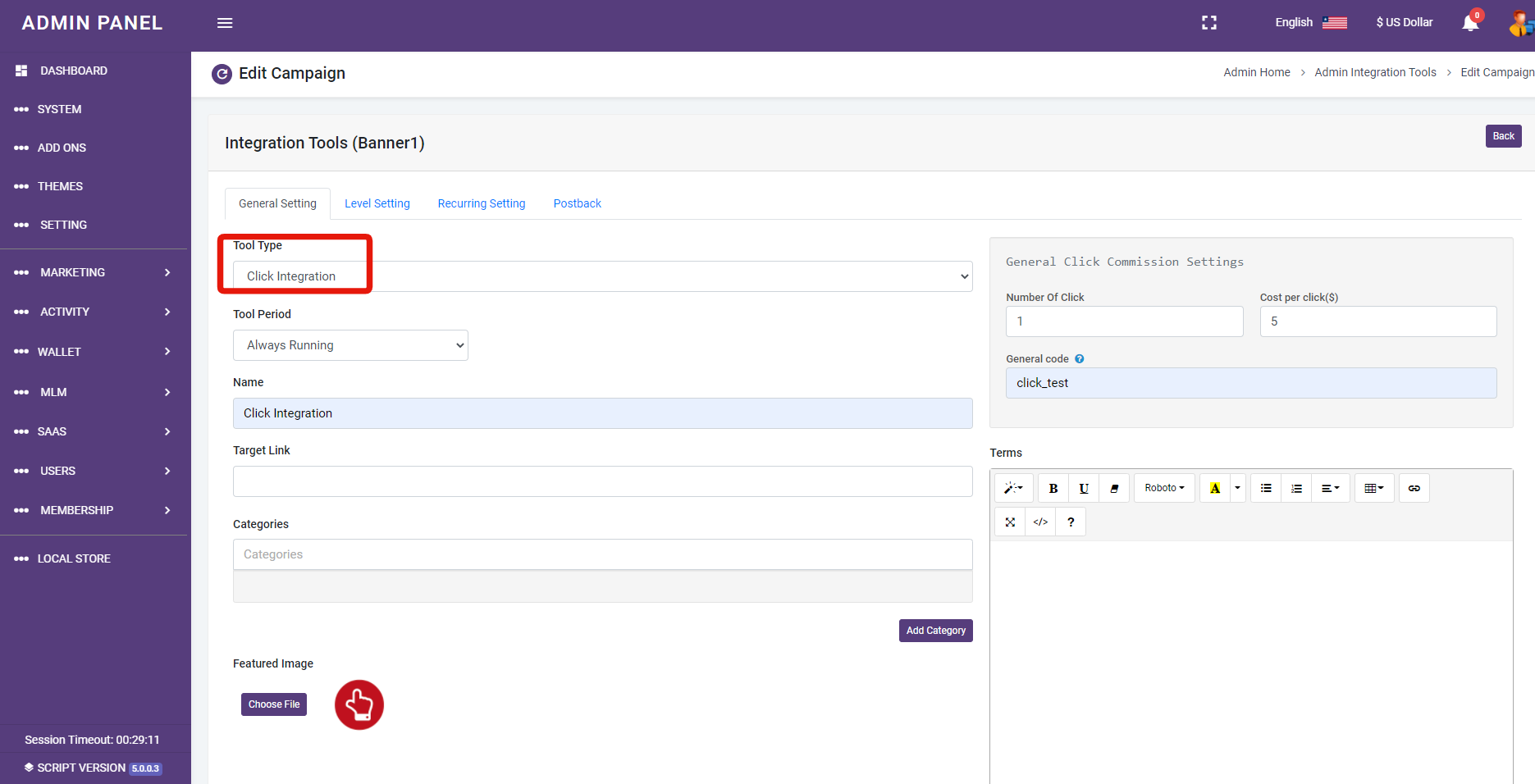
- Select Tool Type “Click Integration”
- Set your campaign name
- Set the target link where you want to track the link, it can be your main site or a specific page as well
- Choose a category [option]
- An auto featured icon will be set for you [you can replace it with yours]
- An auto featured image will be set for you [you can replace it with yours]
- Set “
- Set “General code” – it will be a strong code that will need to be inside the tracking code so it must be without space and special charters
- finally, save the banner.
Step 2 – Integrate the tracking code on your site
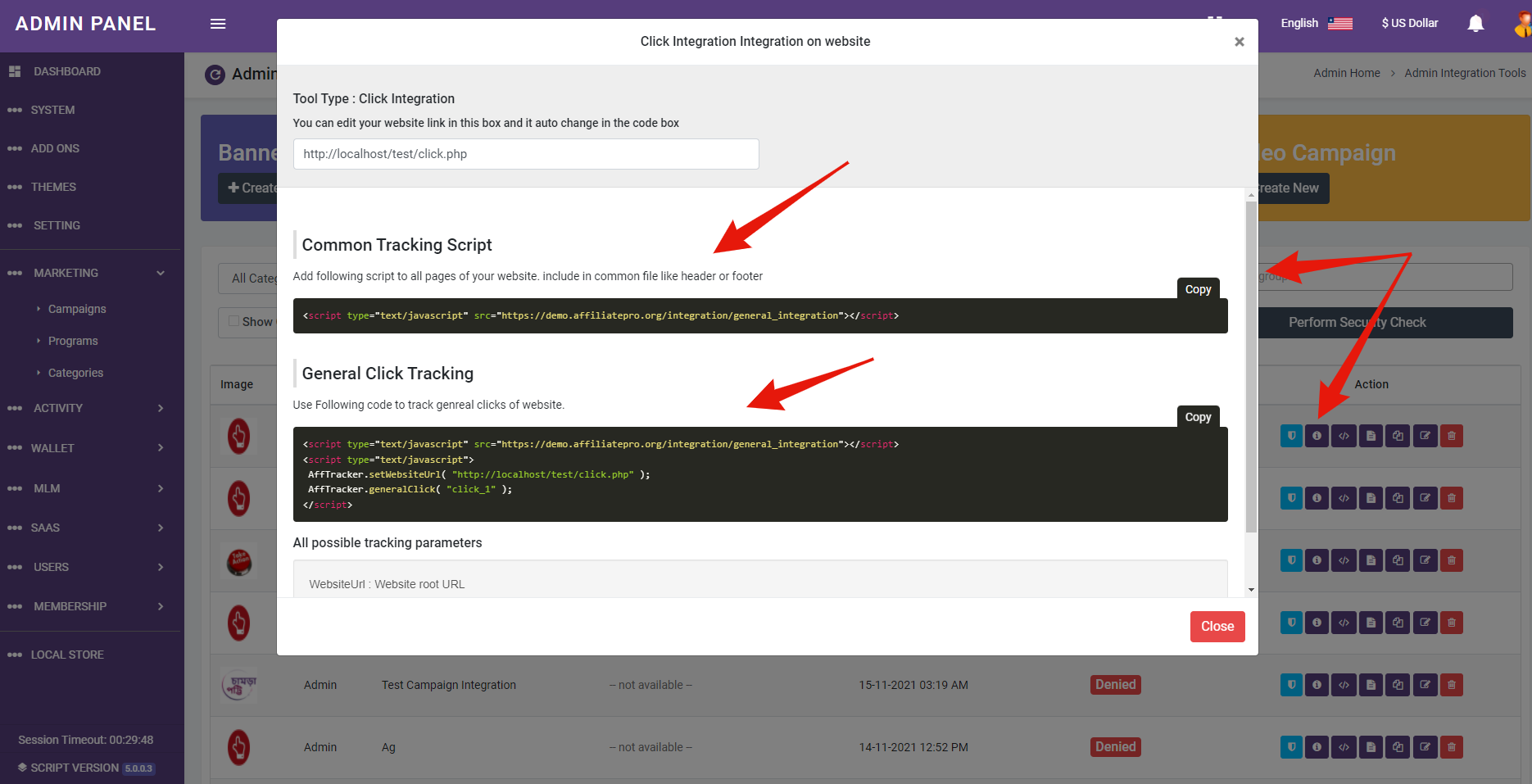
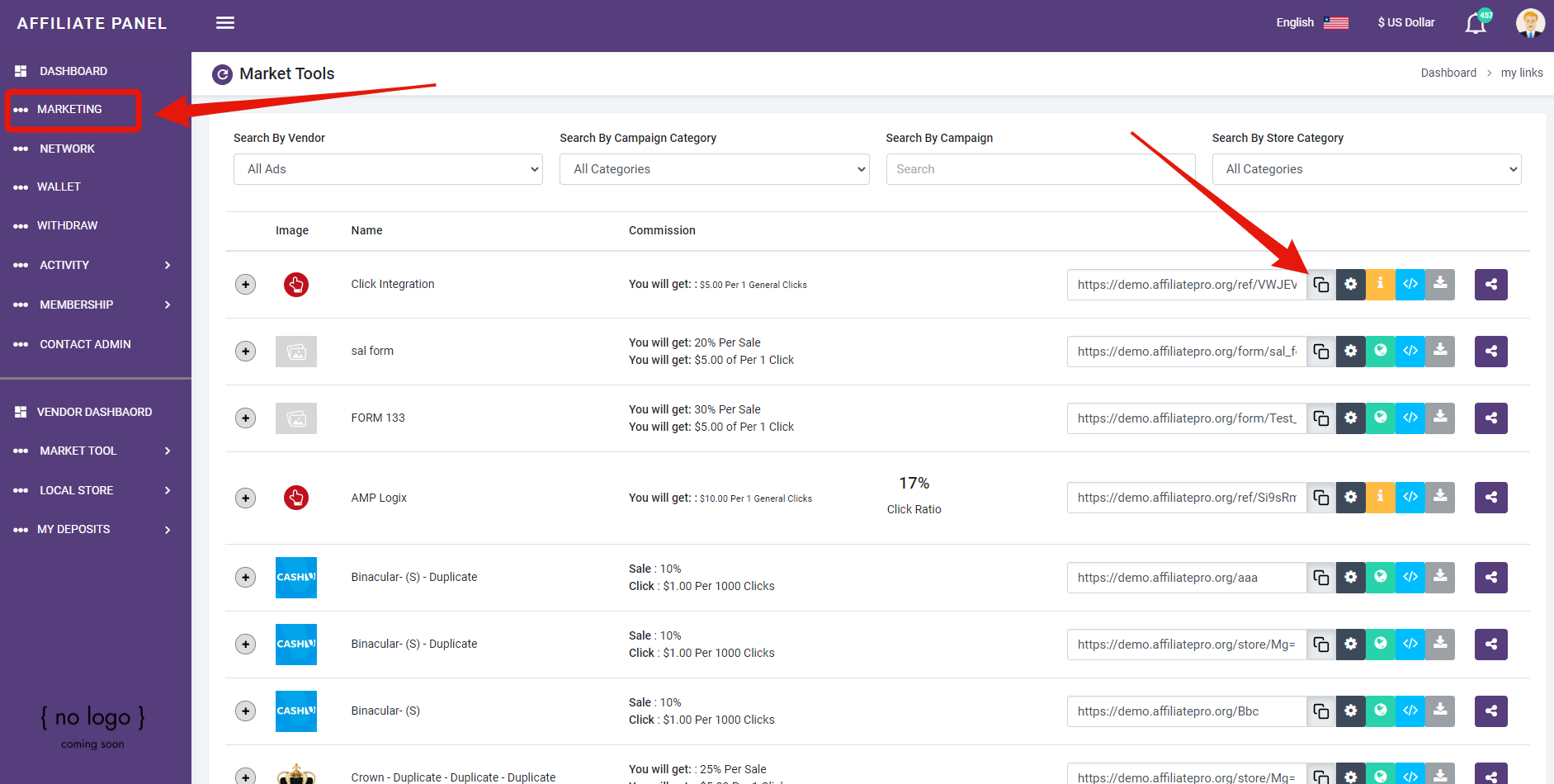
Press on the integration icon to get the code to your target page
- Copy the Common Tracking code and place it on your site header or on the specific page you want to track clicks
- Copy the general click tracking code and place it on your site header or on the specific page you want to track clicks
Step 3 – Run integration security tester to check integration is valid.
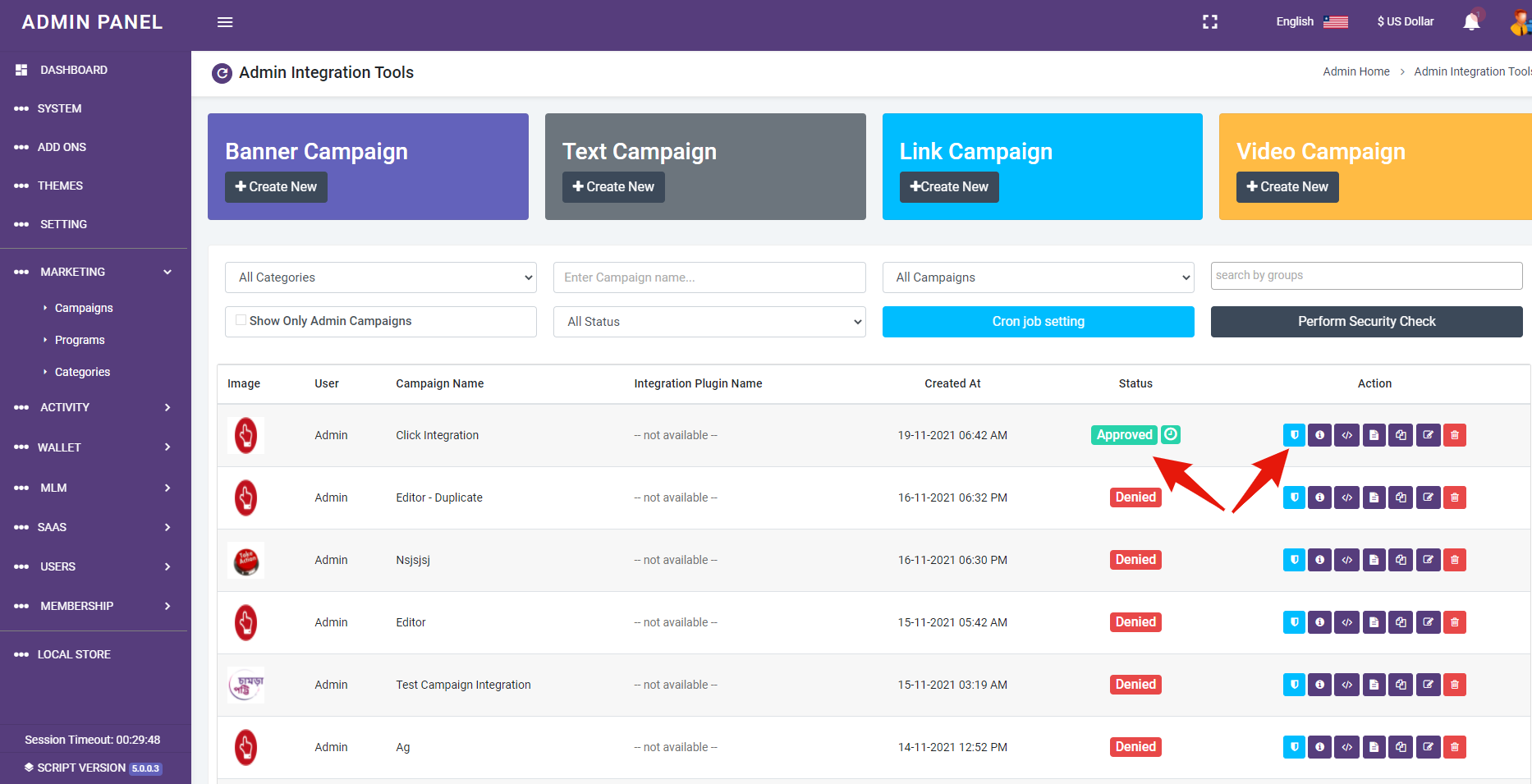
Step 4 – Test using an affiliate account
Do a full test using an affiliate account and on a different browser where no admin and no affiliate are logins in.
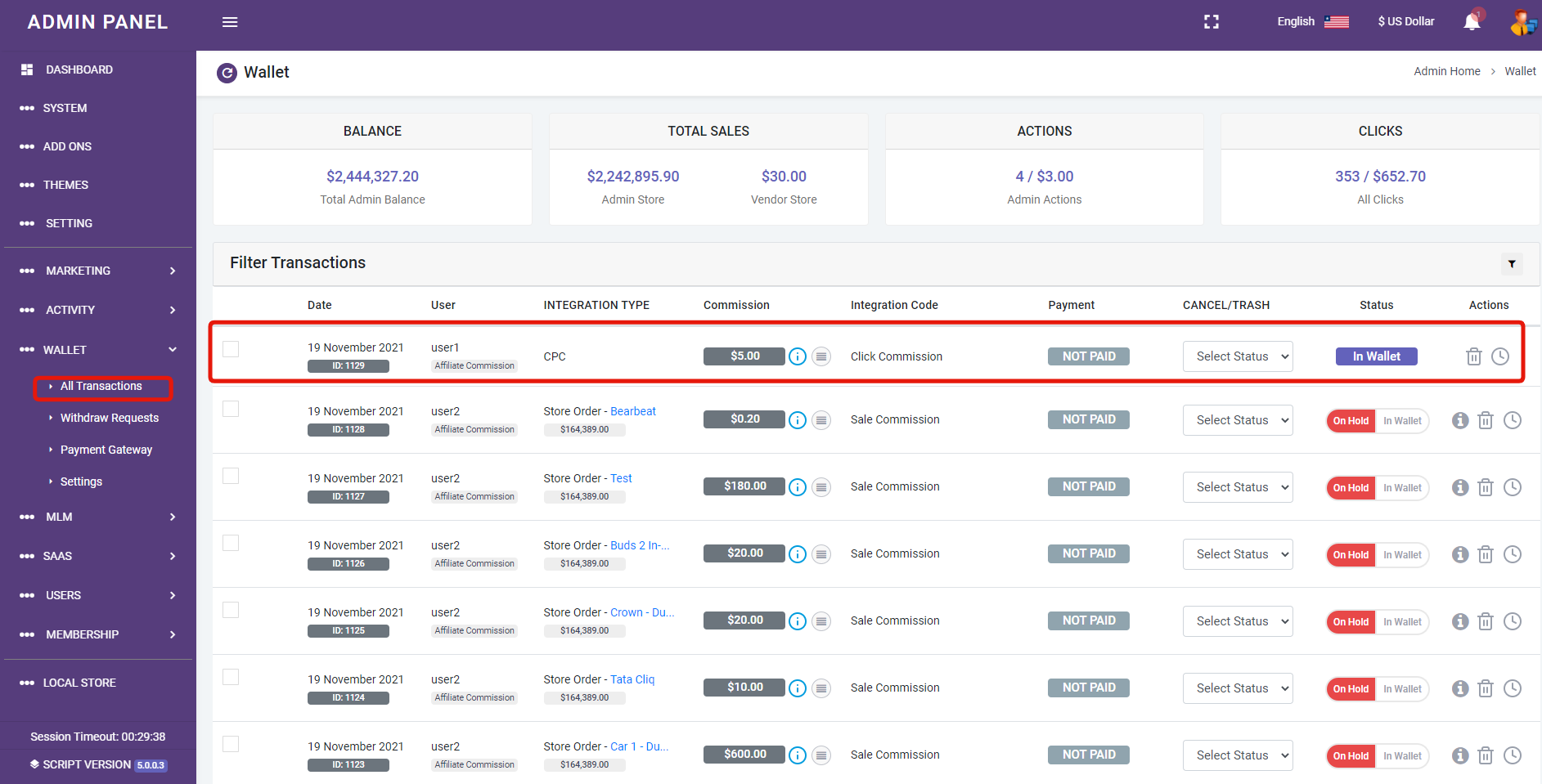
Results on Admin wallet: